Why Screenshotting ChatGPT Doesn't Work Long Term
AI Productivity
Screenshotting ChatGPT is a quick capture habit that saves AI answers visually but makes them harder to search, edit, organize, and reuse later.

Gravy is an AI chat notebook for the perfect thinking workspace, allowing you to capture, organize and convert insights from AI conversations into structured and editable Smart Notes.
Why do people screenshot ChatGPT answers in the first place?
People screenshot ChatGPT answers because screenshots are the fastest way to stop an idea from disappearing. When a response feels useful, you do not want to lose it inside a growing thread. Taking a screenshot feels safer than trusting yourself to scroll back later, especially when the answer contains a framework, checklist, product idea, content angle, or explanation you might need again. It feels like insurance.
The habit makes sense because the normal AI workflow has friction. Copying text means highlighting the right section, switching to Apple Notes, Notion, Google Docs, or another app, creating a note, pasting, fixing formatting, and returning to the conversation. A screenshot avoids all of that. It captures the answer in one quick action.
The problem is that a screenshot solves the emotional problem of “I do not want to lose this” without solving the practical problem of “I need to use this later.” It preserves the image of the answer, not a clean working note.
Why do ChatGPT screenshots fail as a long-term note system?
ChatGPT screenshots fail as a long-term note system because they save information in the least flexible format. A screenshot may capture the answer visually, but it does not automatically become a searchable, editable, organized note. Later, you may remember that you saved something useful, but not which screenshot contains it, which project it belonged to, or what you planned to do with it.
| Screenshot problem | What happens later | Better alternative |
|---|---|---|
| Static image | Harder to edit | Save text |
| Weak context | Meaning fades | Add context sentence |
| Camera roll clutter | Hard to review | Use project notes |
| No next action | Idea stays passive | Attach a task |
This is especially painful for long ChatGPT answers. A screenshot of a large AI response is often a wall of text inside your camera roll. You cannot easily trim it into a checklist, turn it into a draft, combine it with related notes, or link it to a decision. The screenshot becomes a frozen memory of the idea instead of a tool you can work with.
What gets lost when you save AI answers as screenshots?
When you save AI answers as screenshots, you often lose context, editability, and retrieval quality. Context is the biggest loss. A ChatGPT answer usually depends on the prompt before it, the project you were thinking about, and the reason the response mattered. A screenshot captures the visible answer, but it rarely captures the full question, decision, or next step.
- You lose the original reason the response mattered.
- You lose the ability to quickly edit the answer into a note, draft, plan, or checklist.
- You lose clean search unless your photo app or device OCR recognizes the text correctly.
- You lose organization because screenshots live beside receipts, photos, memes, and random images.
- You lose momentum when you later need to manually rebuild the idea from the image.
That is why screenshots create a delayed workload. The capture feels instant, but the reuse becomes harder. If the answer is important enough to screenshot, it is usually important enough to turn into a proper note with a title, context, and next action.
What should you do instead of screenshotting ChatGPT answers?
Instead of screenshotting ChatGPT answers, save the useful section as editable text with a title, context sentence, and next-use label. The goal is to turn the AI answer into a working asset, not just preserve proof that it existed. A working asset can be searched, edited, combined, reviewed, and used in a project.
- Choose the smallest useful part of the response.
- Save it as text, not an image.
- Title it by future search intent, such as “pricing risk checklist.”
- Add one sentence explaining the original question, project, or decision.
- Label it as a plan, draft, checklist, framework, research note, or decision.
This workflow works because it respects why people screenshot in the first place: speed. You do not need a complicated note system. You need a fast capture habit that keeps the idea usable. If the answer is only mildly interesting, leave it in the chat. If it has future value, save it properly. The line is simple: screenshots are fine for temporary memory, but notes are better for long-term use.
How does Gravy replace ChatGPT screenshots with Smart Notes?
Gravy replaces ChatGPT screenshots by giving you a way to save the useful part of an AI response while you are still inside the thinking flow. In a normal workflow, you chat with AI, notice a valuable answer, and then choose between scrolling later, copy-pasting, asking the AI to repeat itself, or taking a screenshot. Gravy removes that rescue behavior.
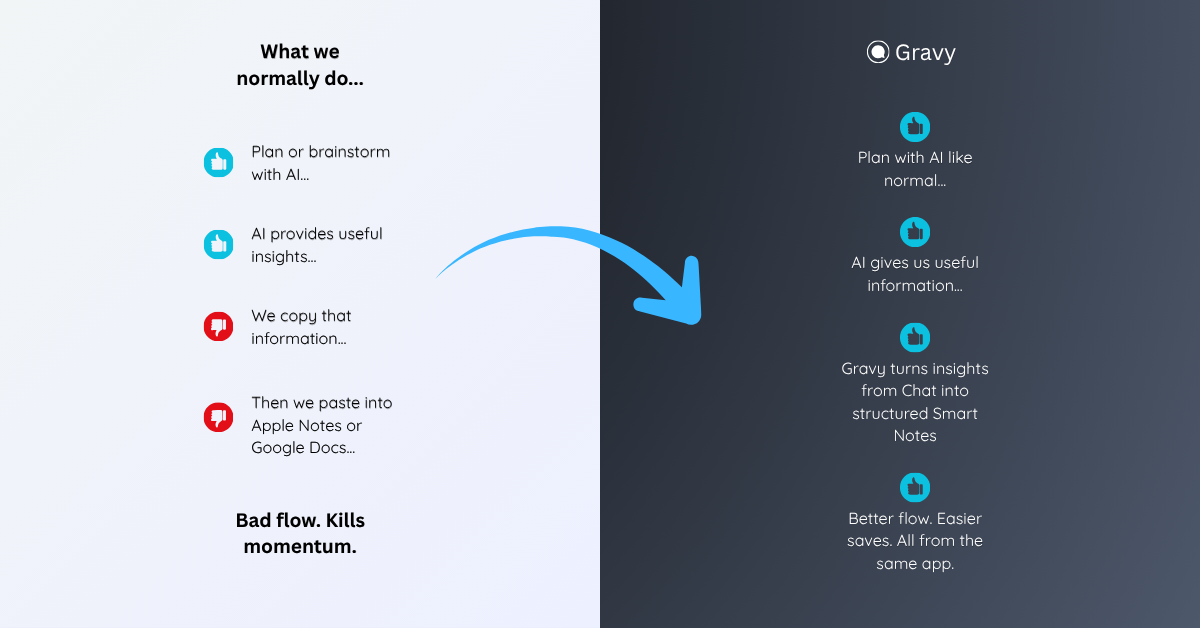
You use Gravy Chat normally to brainstorm, plan, learn, research, or think through a decision. When the AI gives a useful answer, Gravy separates it into Smart Blocks. Instead of screenshotting the whole response, you choose the exact section worth keeping and save it as an editable Smart Note.
That matters because a Smart Note is not a frozen image. It is text you can edit, organize, review, and reuse. The conversation can keep moving, but the idea does not get buried. The useful part becomes a note at the moment it matters, not a screenshot you have to decode later.
How to stop screenshotting ChatGPT answers
- Use screenshots only for temporary captureTreat screenshots as a quick emergency save, not your main AI note system. If the answer matters long term, it should become text.
- Save the smallest useful sectionDo not preserve the whole response unless every part has value. Capture the exact framework, checklist, draft, decision, or explanation you will reuse.
- Add context before it fadesWrite one sentence explaining the project, prompt, or decision behind the saved answer. This prevents the note from feeling random later.
- Give the note a search-friendly titleUse a title based on future search intent, such as “launch week checklist” or “customer objection responses,” not “ChatGPT screenshot.”
- Review saved AI notes weeklyClean up saved answers, delete weak captures, merge duplicates, and move the best notes into active projects, drafts, or decision documents.
How Gravy fits
Gravy fits this workflow because the best ChatGPT answers should not end up as static screenshots in your camera roll. You can chat normally, save useful Smart Blocks as editable Smart Notes, and keep the insight organized while the reason it matters is still fresh. That gives you a cleaner path from AI conversation to reusable knowledge.
FAQ
Is screenshotting ChatGPT a good way to save answers?
Screenshotting is fine for temporary capture, but it is weak long term. Screenshots are harder to edit, search, organize, and turn into useful notes compared with saved text.
Why do my ChatGPT screenshots become hard to use later?
They often lack context, clear titles, project labels, and next actions. They also live in your camera roll with unrelated images, which makes retrieval harder over time.
What should I do instead of taking screenshots of ChatGPT?
Save the useful section as editable text, give it a search-friendly title, add one sentence of context, and organize it by project, decision, or future use.
Can iPhone Live Text make ChatGPT screenshots searchable?
Live Text can help extract text from images, but it is still an extra step. For important AI answers, saving editable text directly is cleaner than relying on screenshots.
How does Gravy help replace ChatGPT screenshots?
Gravy lets you save useful Smart Blocks from AI responses as editable Smart Notes, so you can preserve the answer itself instead of taking a screenshot of the conversation.