How to Save AI Chat Responses to Notes Without Breaking Your Workflow
Note-Taking
Saving AI chat responses to notes is a capture workflow that turns useful AI answers into organized, editable knowledge you can find later.

Gravy is an AI chat notebook for the perfect thinking workspace, allowing you to capture, organize and convert insights from AI conversations into structured and editable Smart Notes.

What is the best way to save AI chat responses to notes?
The best way to save AI chat responses to notes is to capture the smallest useful part of the answer, label it by future use, and store it with enough context to make sense later. The goal is not to collect every AI response. The goal is to preserve the answers that can become decisions, plans, checklists, drafts, research summaries, or reusable explanations.
Most people do this manually. They use ChatGPT, Claude, Gemini, or another AI tool to think through something, then copy a useful answer into Apple Notes, Notion, Google Docs, or a document. That works once or twice. It breaks down when the conversation gets long and the best ideas are scattered across multiple responses.
A better workflow has three parts: capture during the conversation, save selectively, and organize by use case. If an AI response gives you ten sections but only one section matters, save that one section. Then title the note according to what you would search later, such as “pricing objection responses” or “weekly planning framework.”
Why does copying AI responses into note apps become messy?
Copying AI responses into note apps becomes messy because you are moving information between two systems with different jobs. AI chat is built for exploration. Traditional notes are built for storage. When you copy a long AI answer into a note app, you often bring the entire response over, including parts that were useful only during the conversation.
The mess usually shows up in four ways. First, the saved note is too long, so you never reread it. Second, the title is vague, so search fails later. Third, the note lacks context, so you forget why the answer mattered. Fourth, the original source thread is disconnected, so you cannot easily return to the broader reasoning.
| Problem | What it looks like | Better fix |
|---|---|---|
| Too much text | Full AI response pasted | Save only the useful section |
| Weak title | “AI notes” | Name the future use |
| Lost context | No project link | Add one context sentence |
| Scattered apps | Notes across tools | Use one capture system |
What should every saved AI chat note include?
Every saved AI chat note should include four pieces: a clear title, the useful response section, a context sentence, and a next-use label. Without those pieces, you may technically save the answer, but you make it harder to reuse. The note becomes a storage dump instead of a working asset.
- Title: what you would search later, such as “customer onboarding checklist.”
- Response: only the part of the AI answer that has future value.
- Context: why you saved it and which project or decision it supports.
- Next-use label: draft, research, plan, checklist, decision, or reference.
This structure is especially useful when AI helps you brainstorm. During brainstorming, ideas feel obvious because the conversation is fresh. Later, the same text can feel disconnected. A short context sentence protects the meaning. For example: “Use this checklist for the first version of the launch email sequence” is enough to make the saved AI response actionable again.
I also recommend keeping the saved note editable. AI output should rarely be treated as final. The best saved responses become drafts you refine, plans you adjust, or frameworks you adapt.
How can you save only the useful part of an AI response?
You can save only the useful part of an AI response by treating the response like raw material, not a finished document. Most AI answers contain multiple layers: an explanation, a few examples, a framework, a warning, and sometimes filler. Your job is to identify the piece that has reuse value and ignore the rest.
- Read the answer once for meaning before copying anything.
- Highlight the section that could become a plan, checklist, draft, framework, or reference.
- Remove repeated setup language, generic disclaimers, and sections that do not support your goal.
- Add one line explaining where the saved section came from and why it matters.
- Store it under the project, decision, or workflow where you will need it again.
This is the difference between archiving a chat and building a knowledge system. Archiving says, “I might need this someday.” Selective saving says, “This specific answer is useful for this specific purpose.” The second approach produces fewer notes, but they are much easier to search, review, and turn into action.
How does Gravy turn AI chat responses into organized notes?
Gravy turns AI chat responses into organized notes by making capture part of the conversation instead of a separate cleanup task. You chat with Gravy Chat the way you would use any AI assistant: ask questions, brainstorm ideas, plan projects, compare options, and think through decisions. The difference is what happens when the useful answer appears.
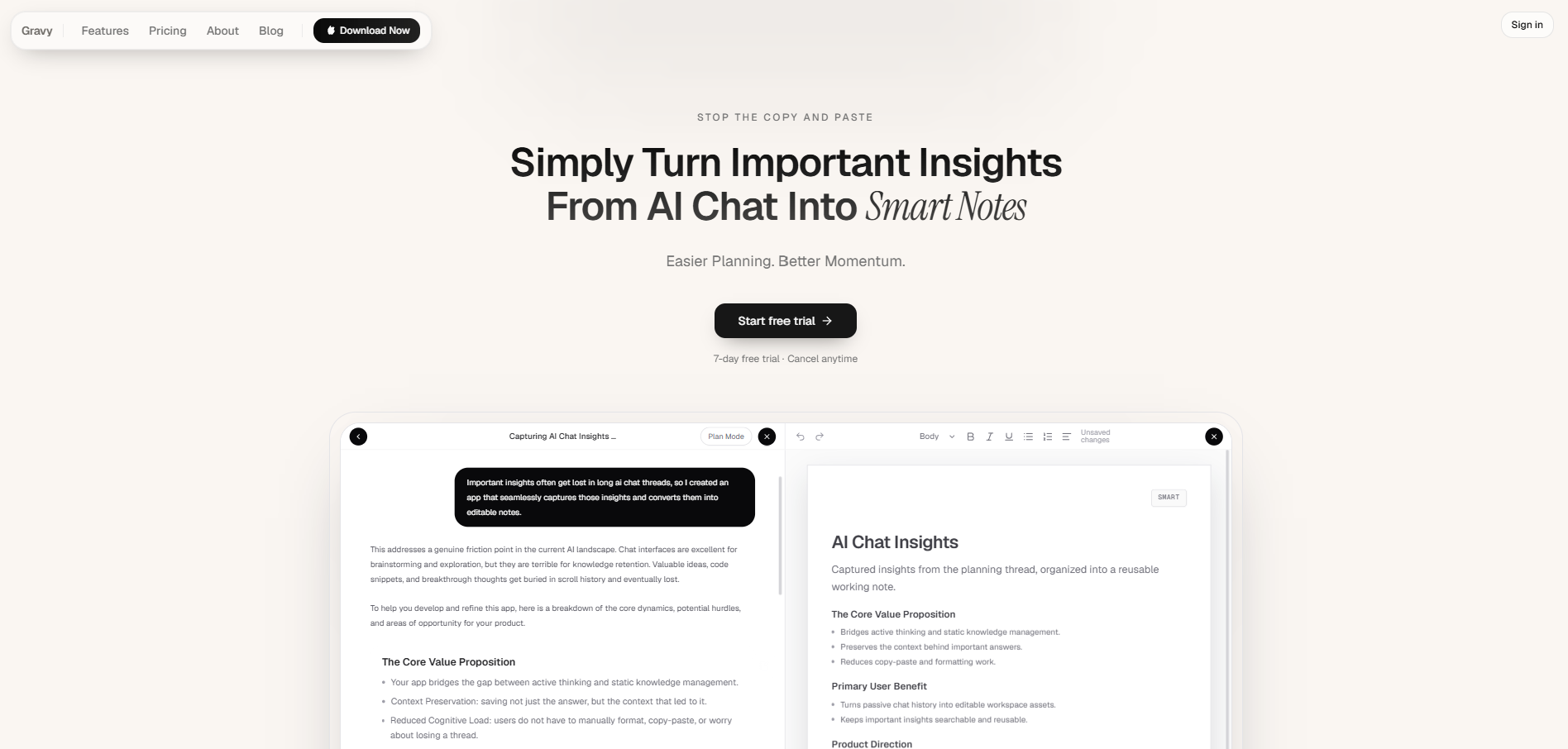
Instead of forcing you to highlight a long response, copy it, open a note app, paste it, and clean it up, Gravy separates AI responses into Smart Blocks. A Smart Block is a focused section of the answer, which makes it easier to save the part that actually matters. One click turns that block into a structured, editable Smart Note.
That workflow matters because AI chat and note-taking should not be enemies. AI chat is where ideas begin. Notes are where useful ideas become durable. Gravy connects those two moments so the best insights do not get lost in scrolling, screenshots, repeated summaries, or scattered copy-paste notes.
How to save AI chat responses to notes
- Spot the reusable insightLook for the part of the AI response that can help you later, such as a plan, checklist, framework, draft, explanation, decision summary, or research takeaway.
- Cut the response downSave only the useful section. Remove filler, repeated setup language, and parts that were only relevant during the live conversation.
- Give the note a search-friendly titleUse the title your future self would type into search. “Launch checklist for app waitlist” is more useful than “AI response from today.”
- Add context before you forget itWrite one sentence explaining why the response matters, which project it belongs to, or what you plan to do with it.
- Review saved AI notes by projectAt the end of the week, review your saved AI notes. Delete weak captures, combine related notes, and move the strongest ones into active plans or drafts.
How Gravy fits
Gravy fits this workflow by keeping AI chat and note capture in one place. When a useful response appears, you can save the right Smart Block as an editable Smart Note instead of copy-pasting into another app or taking screenshots. That helps you build a notebook from the ideas that start inside AI chat.
FAQ
How do I save AI chat responses to notes?
Save the useful section of the response, give it a clear title, add one sentence of context, and store it in a consistent note system. Avoid saving entire AI responses unless every section is useful.
Should I copy AI answers into Apple Notes?
Apple Notes can work for basic saving, but copying answers manually can become messy if you do not add titles, context, and organization. The bigger issue is not the note app. It is the lack of a capture workflow.
What is an AI chat notebook?
An AI chat notebook is a workspace that combines AI conversation with structured notes, so useful insights from chat can be captured, edited, organized, and reused without leaving the thinking flow.
Why do my AI notes become hard to find?
AI notes become hard to find when they use vague titles, include too much copied text, lack project context, or live across multiple apps. Search works better when each note has a clear purpose.
Can Gravy save AI responses as notes?
Yes. Gravy lets you chat with AI, choose useful Smart Blocks from the response, and save them as editable Smart Notes inside the same workspace.